

You are registering to subscribe to a product
The Heffron IQ Portal is the new home of our compliance and education tools including Super Toolkit (Investment Strategy and Pension Establishment), Super Companion, TBC Calculator and Education Bites.
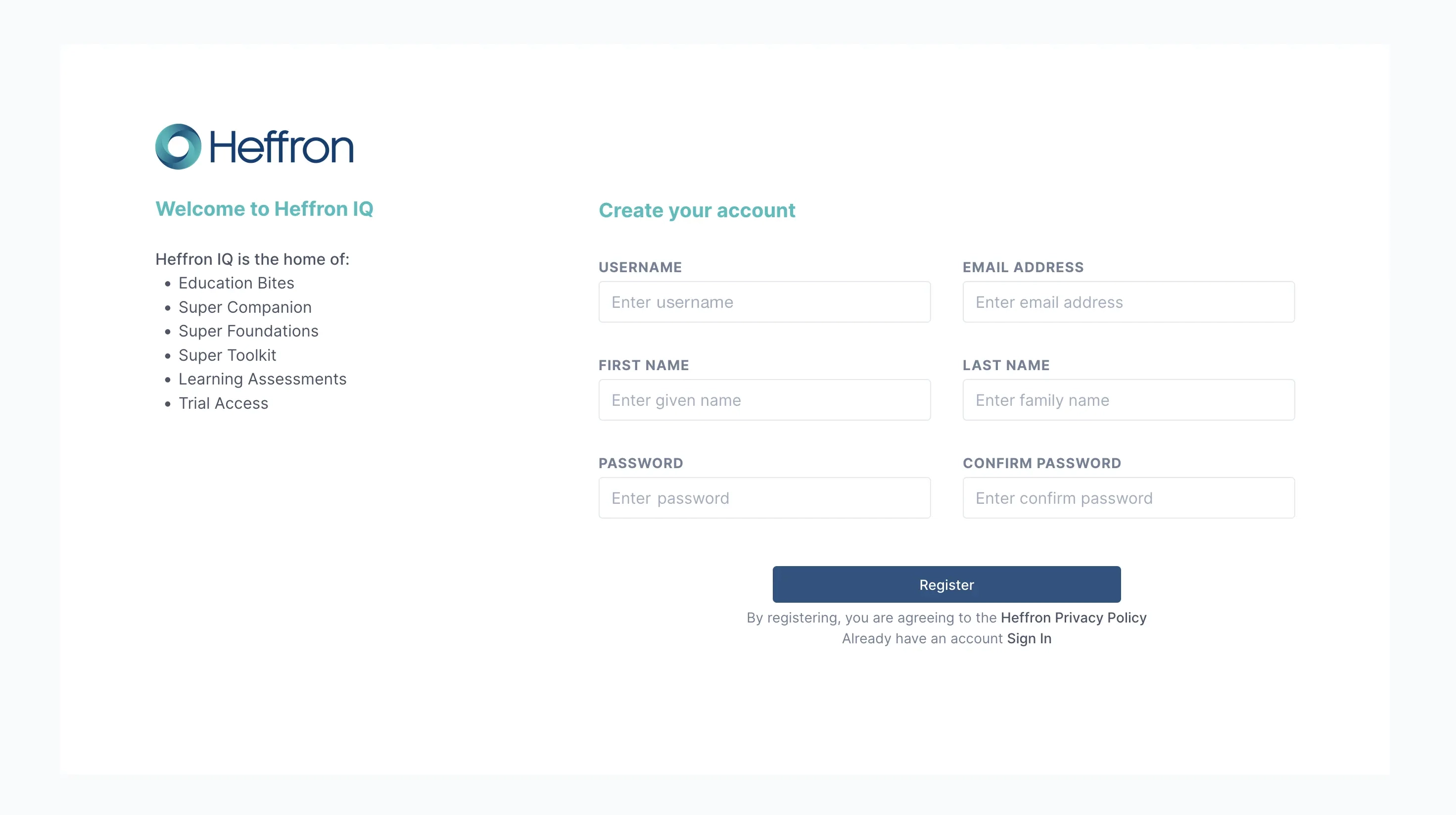
Register your Username, Email Address, First Name and Last Name.
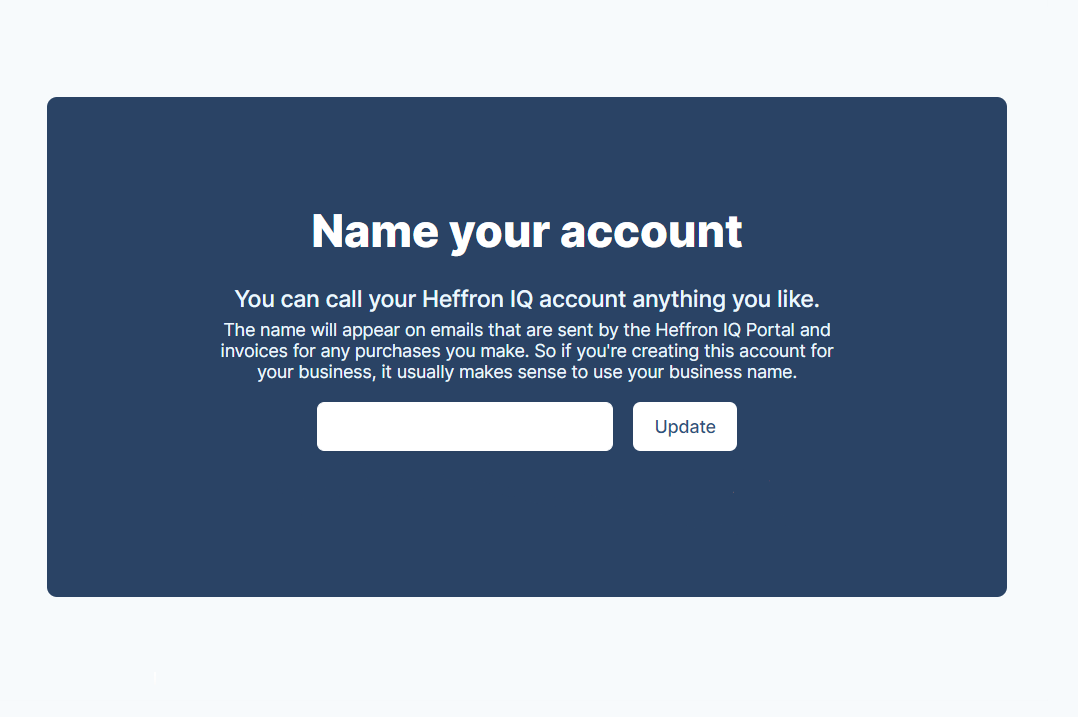
If you are registering for the IQ Portal to subscribe to a product, an account will be created. We recommend including your business name in this account name.
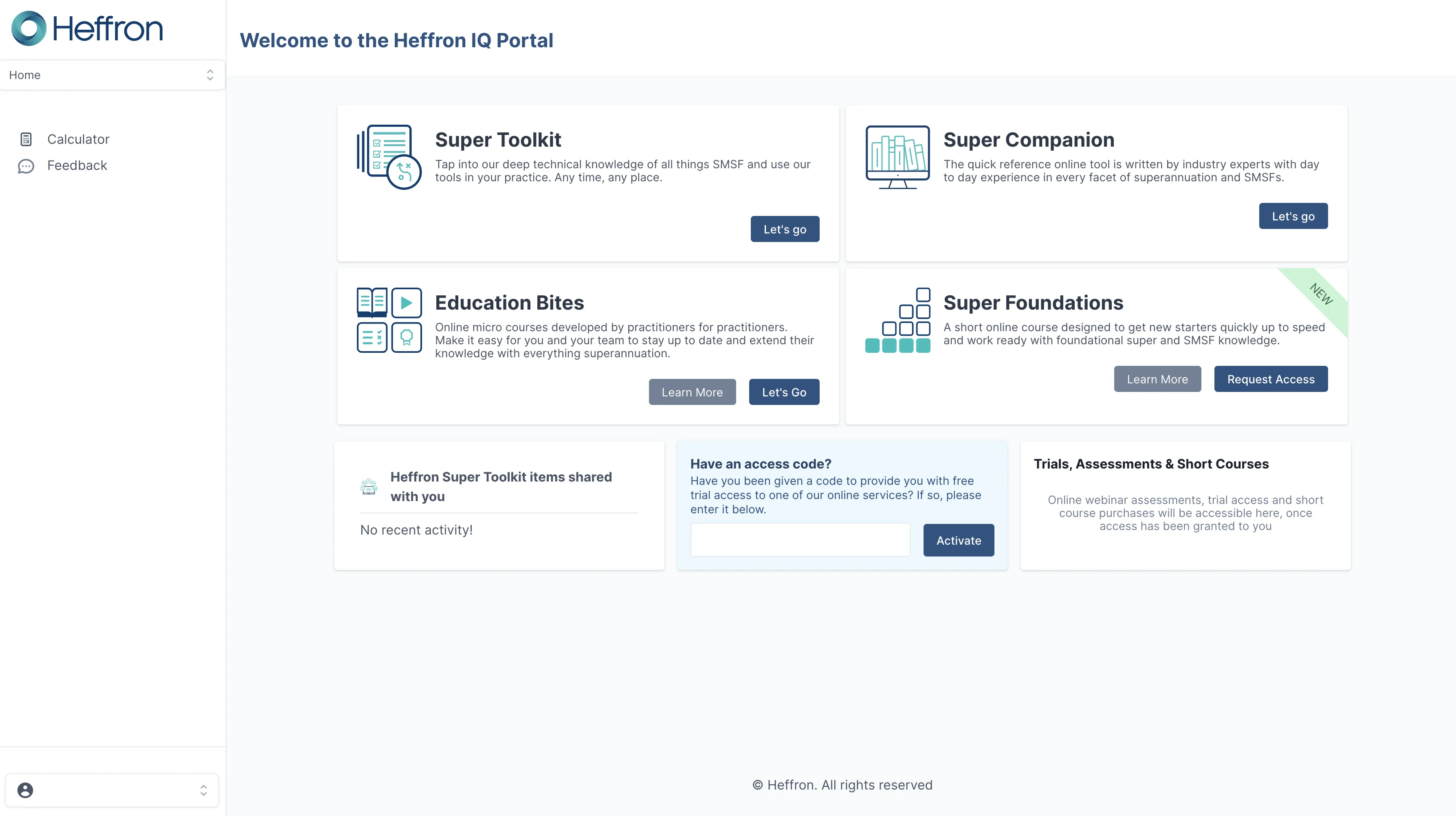
Once you've named your account, you'll be directed to the Heffron IQ dashboard. Click Subscribe on the product you wish to purchase. Choose your subscription level and enter your credit card details.
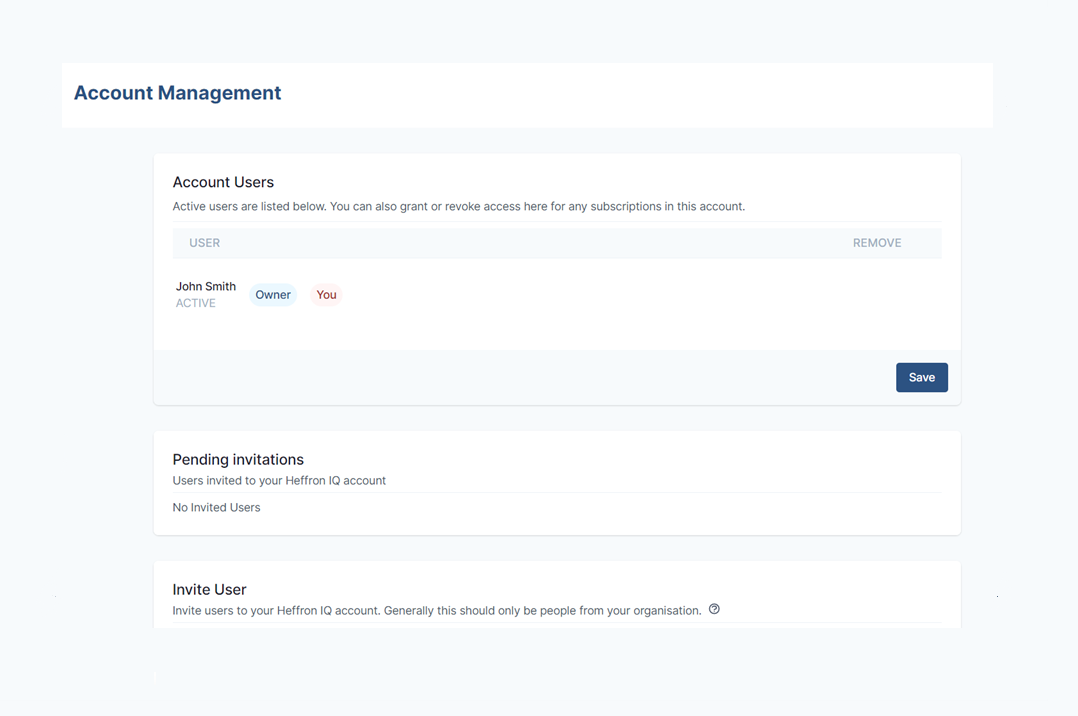
You'll be directed to the account management screen to invite users and grant permissions to your subscribed products.
Accepting an invitation to join
You may have been invited to join an account managed by someone within your business. Your account owner will manage all the subscriptions, billing and access permissions for your account.
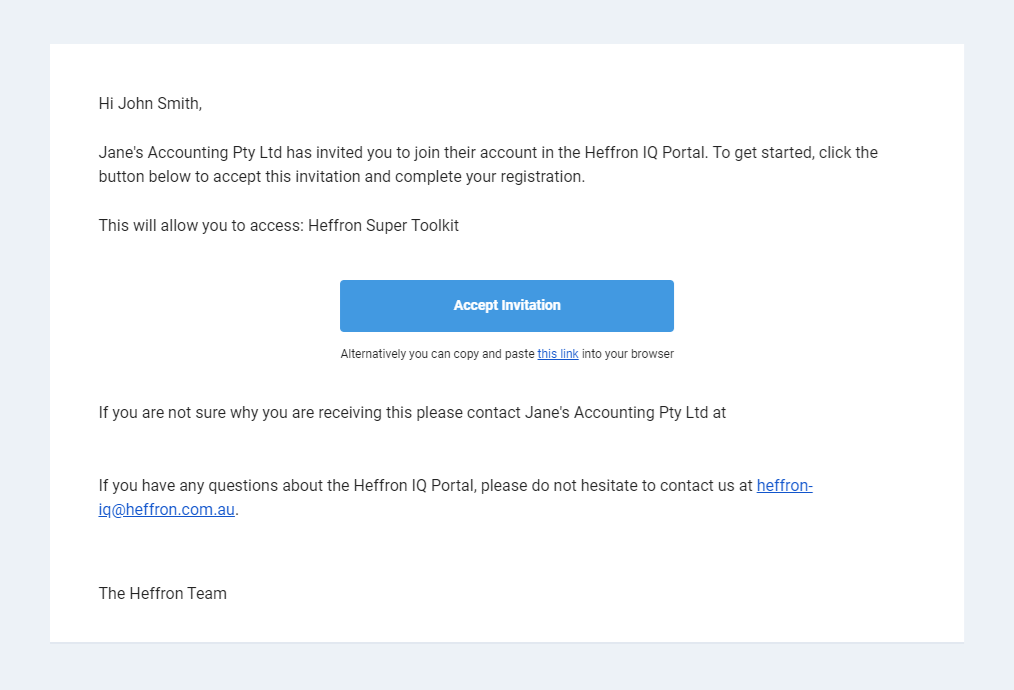
When someone invites you into their account, you'll receive an email with a link to accept the invitation. Click the link to register or login to Heffron IQ.
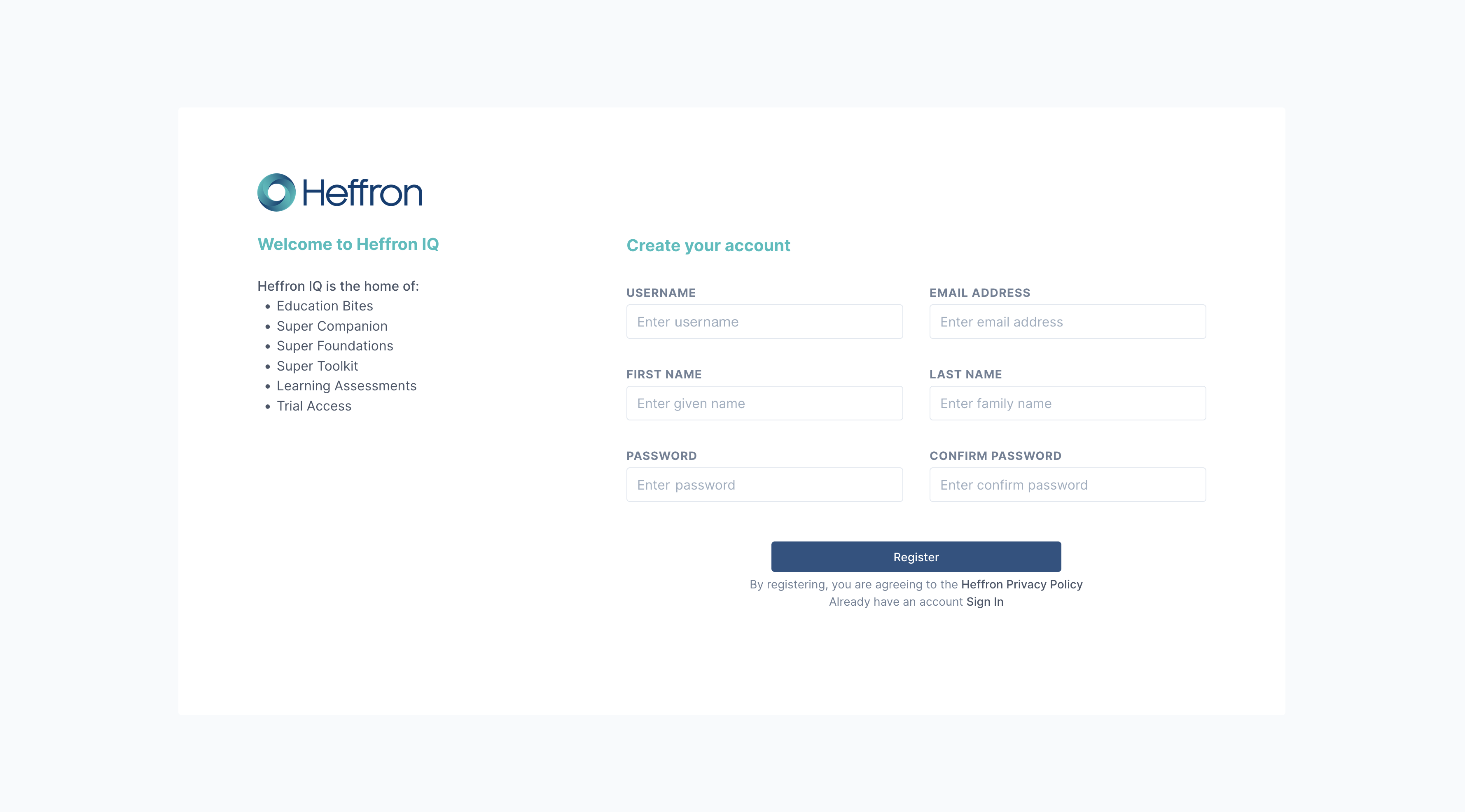
If this is your first time to the Heffron IQ Portal, you’ll need to register and create a free account. If you’re already a Heffron IQ user, simply login with your username and password.
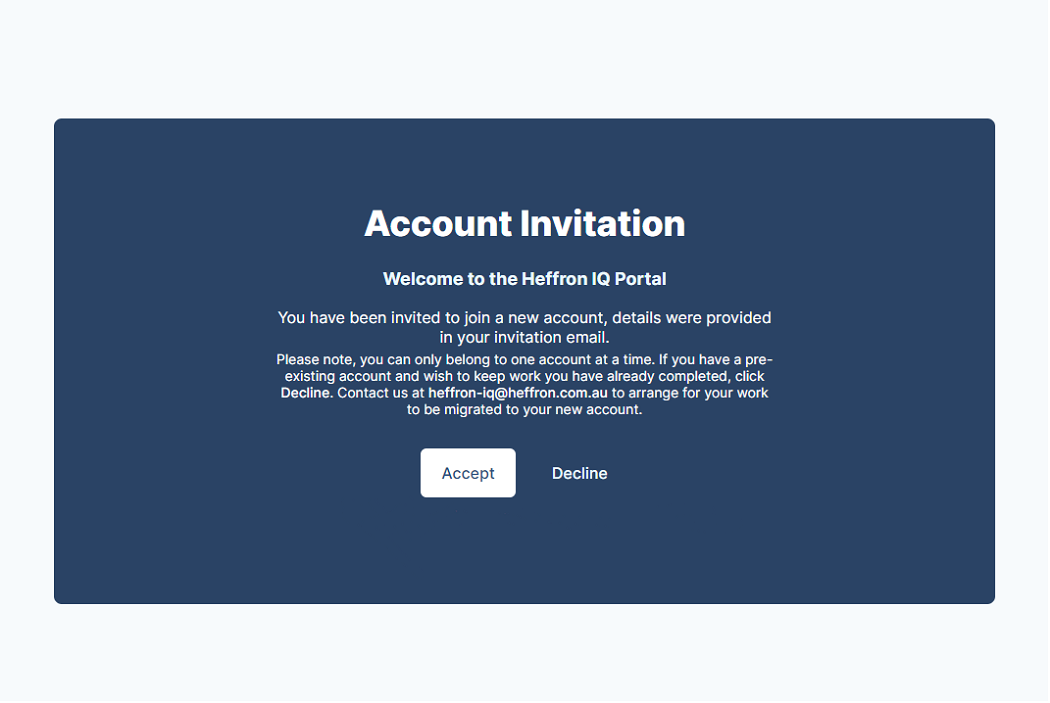
Accept the invitation to join the account. One point to note – if you already have an account, accepting this invitation will move you from your old account to your new one. You can only belong to one Heffron IQ Account. Contact us if you need to migrate work from your old account.
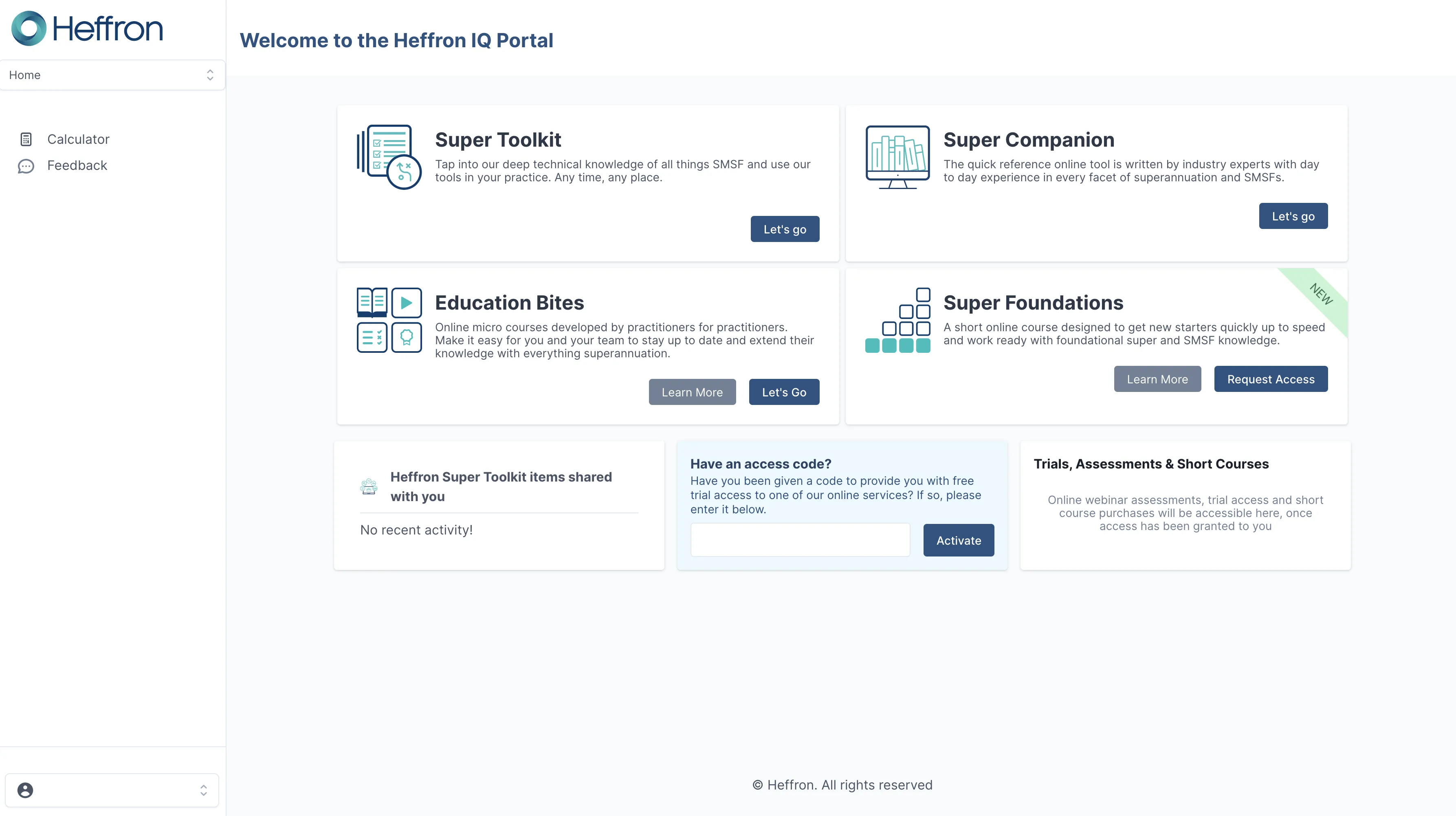
After you’ve logged in, you’ll land on the Heffron IQ dashboard. Click "Let's go" to access your tools or "Request Access" to contact your account owner for access.
Accessing a Shared Item
You may have had a Heffron IQ item shared with you such as an investment strategy or pension document. To view this item, you’ll need to be a user within the Heffron IQ Portal, it’s free to register.
When someone shares an item in the Heffron IQ Portal, you'll receive an email. Click the button to register/login to Heffron IQ and access the shared item.
If this is your first time to the Heffron IQ Portal, you’ll need to register and create a free account. If you’re already a Heffron IQ user, simply login to your account with your username and password.
If you're registering for the Heffron IQ Portal, you'll need to name your account. You can name your account anything you like, most people use their business name if they are purchasing subscriptions in the portal
On your Heffron IQ dashboard, scroll down to “Shared Toolkit Items”. Here you will see all items or documents which have been shared with you. Click to view the item you wish to access.
Connecting your Class account to the Heffron IQ Portal
Many users of the Heffron IQ portal also use other superannuation software in their business. If you use Class, you can connect Heffron IQ to your Class account to reduce the amount of data you need to enter manually.
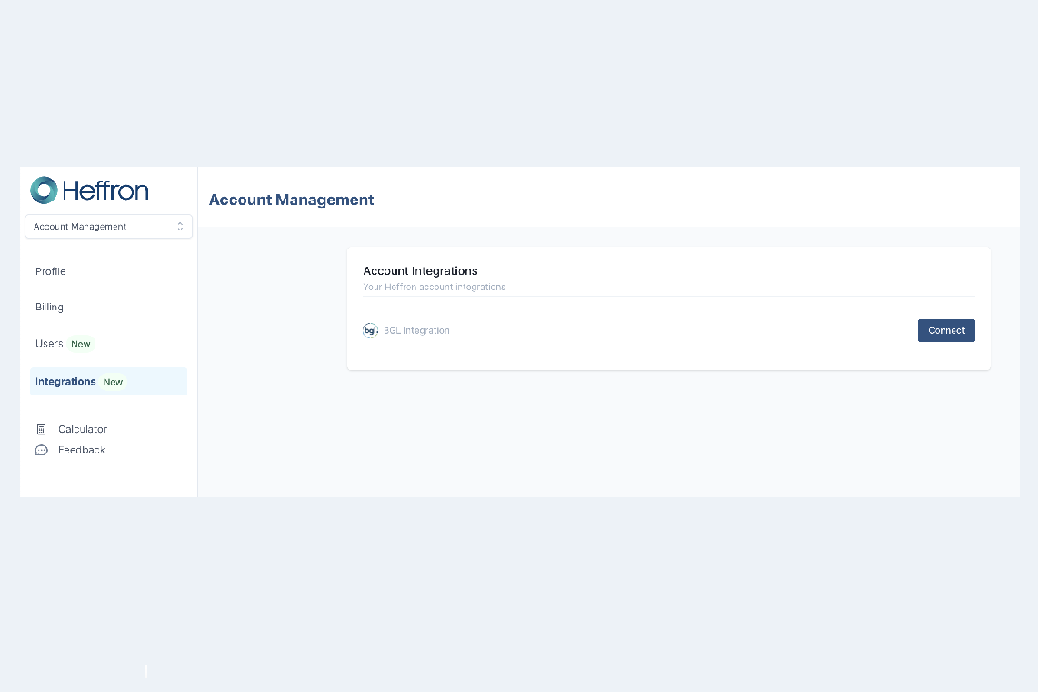
From the Heffron IQ dashboard, navigate to the drop down menu immediately under the Heffron logo (top left). Select "Account Management" and then "Integrations". Once on the integrations page, click "Connect".
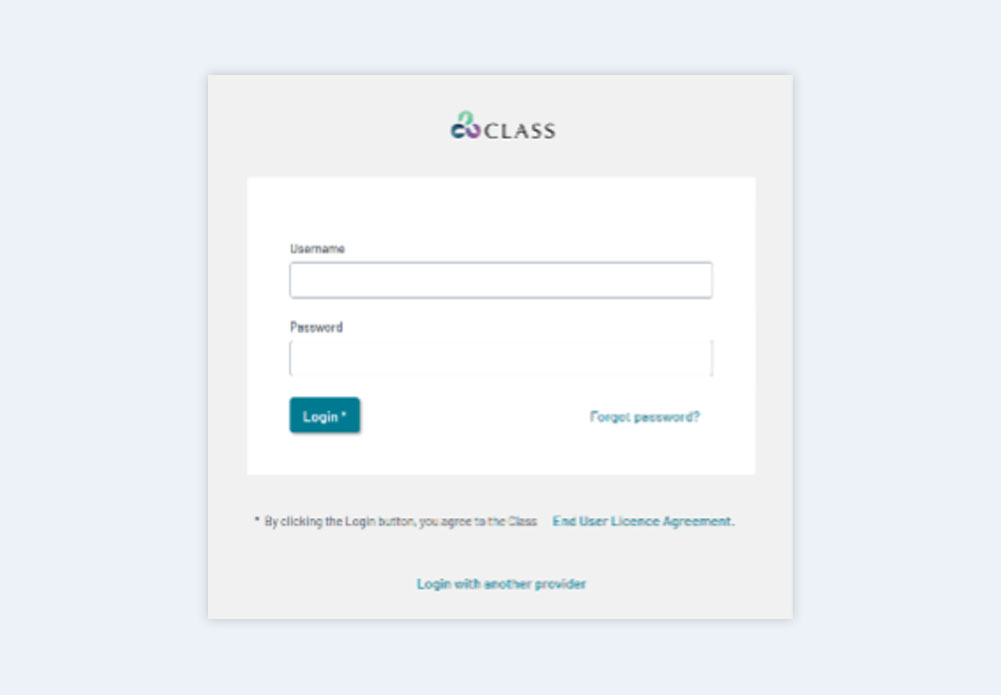
This will take you to Class. Use your username and password to login as you usually would.
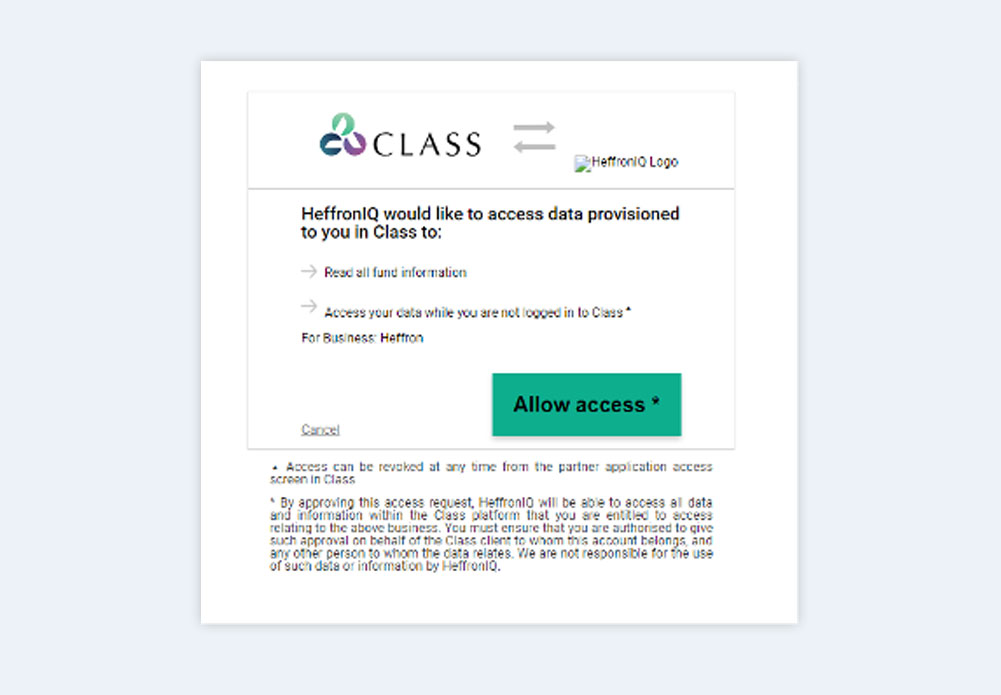
Once you have logged in to Class, you will be required to authorise the connection between your Class account and your Heffron IQ user.
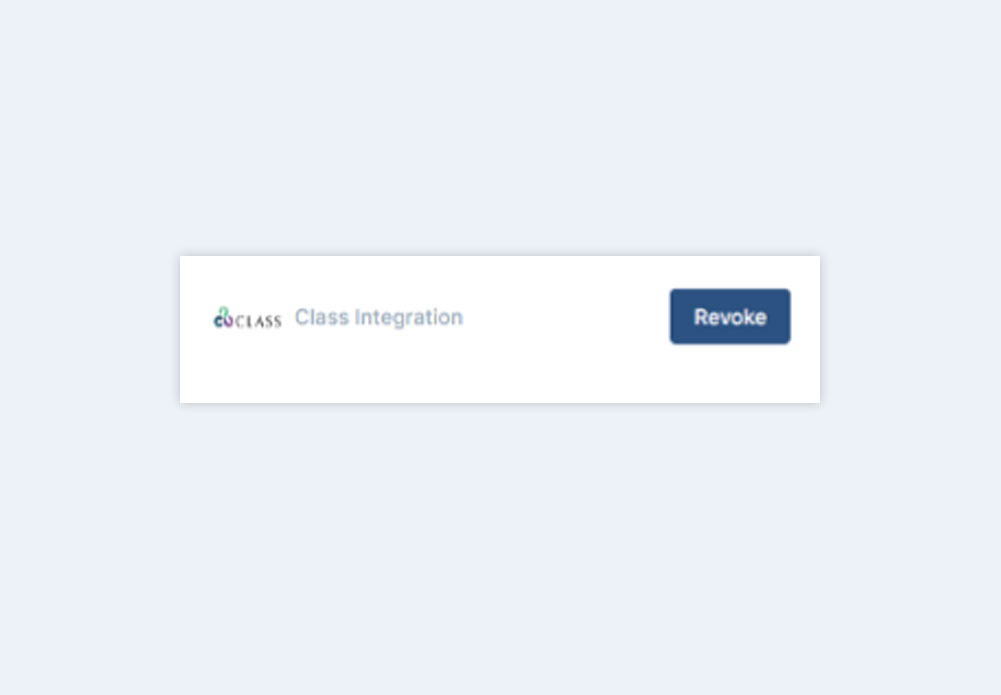
Once you’ve authorised the connection, you will then be directed back to your Heffron IQ account management screen. If at any time you want to stop the connection, you can simply come back to this screen and click “revoke”.
Connecting your BGL360 account to the Heffron IQ Portal
Many users of the Heffron IQ portal also use other superannuation software in their business. If you use BGL360, you can connect Heffron IQ to your BGL account to reduce the amount of data you need to enter manually.
From the Heffron IQ dashboard, navigate to the drop down menu immediately under the Heffron logo (top left). Select "Account Management" and then "Integrations". Once on the integrations page, click "Connect".
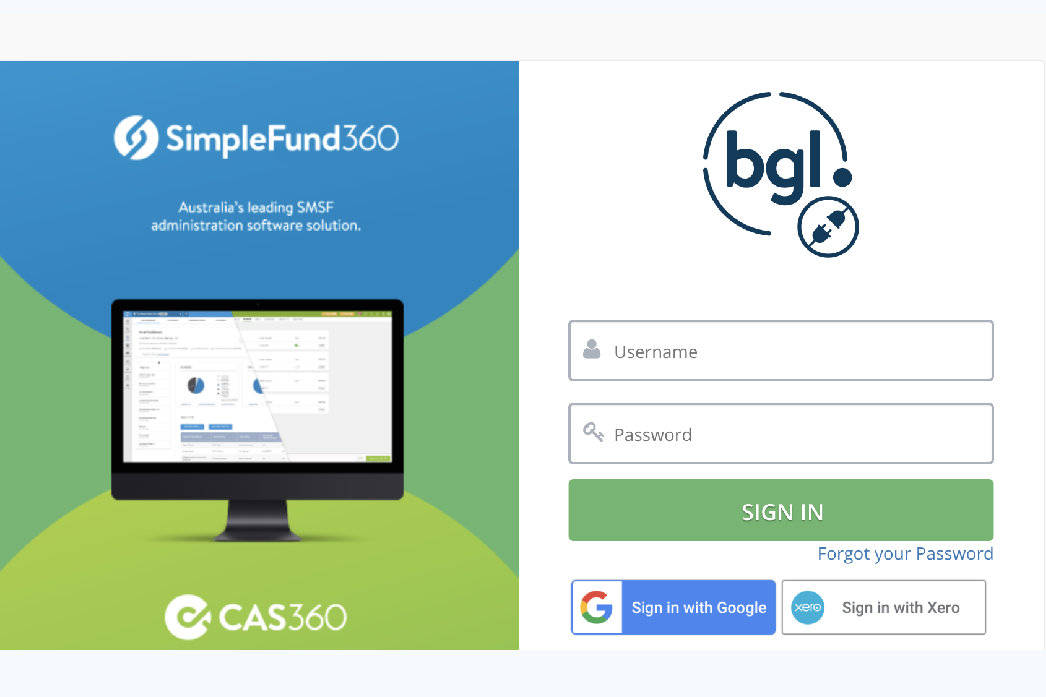
This will take you to BGL360. Use your username and password to login as you usually would.
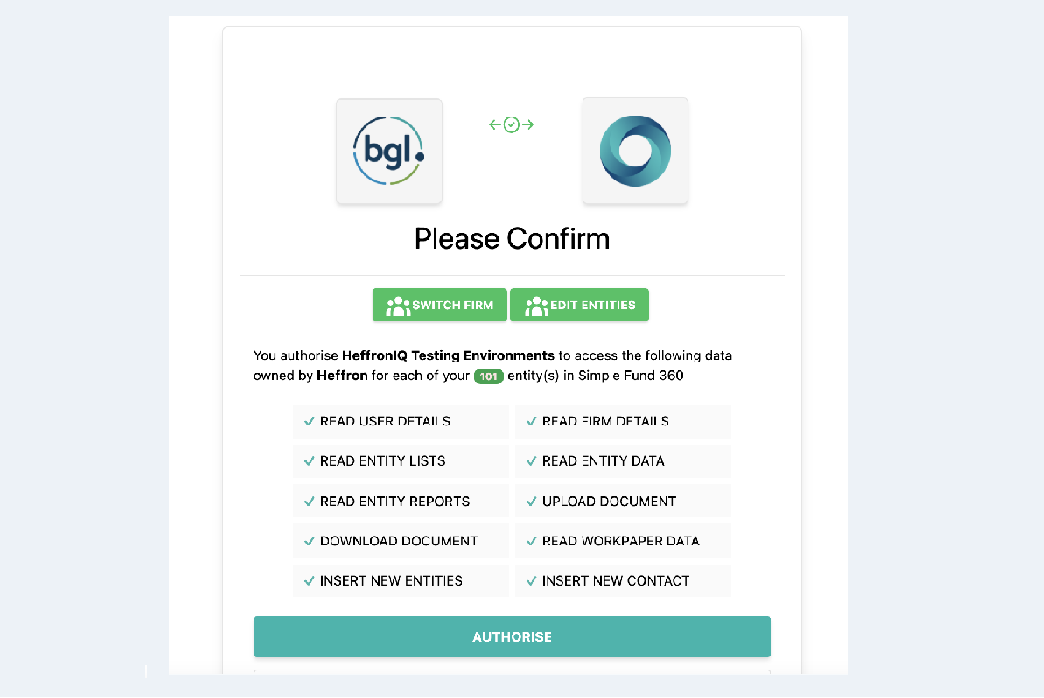
Once you have logged in to BGL360, you will be required to authorise the connection between your BGL360 account and your Heffron IQ user
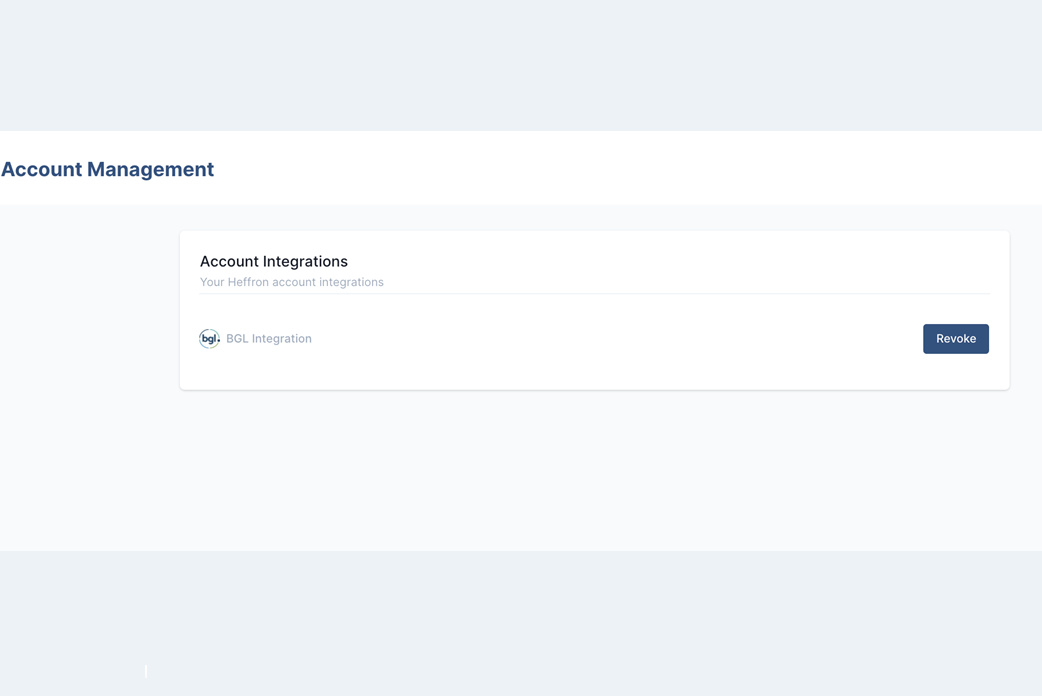
Once you've authorised the connection, you will then be directed back to your Heffron IQ account management screen If at any time you want to stop the connection, you can simply come back to this screen and click "revoke".
Using your integration
To take advantage of the integration your account needs to have a Professional subscription to the Super Toolkit. This is determined by your account owner. Please note that our system only takes the data it needs to pre-populate any forms you complete in the Heffron IQ portal. We don't store anything other than this information and you can revoke the connection at any.
For instructions on how to set up your integration and Heffron IQ connection, see the section directly above this.
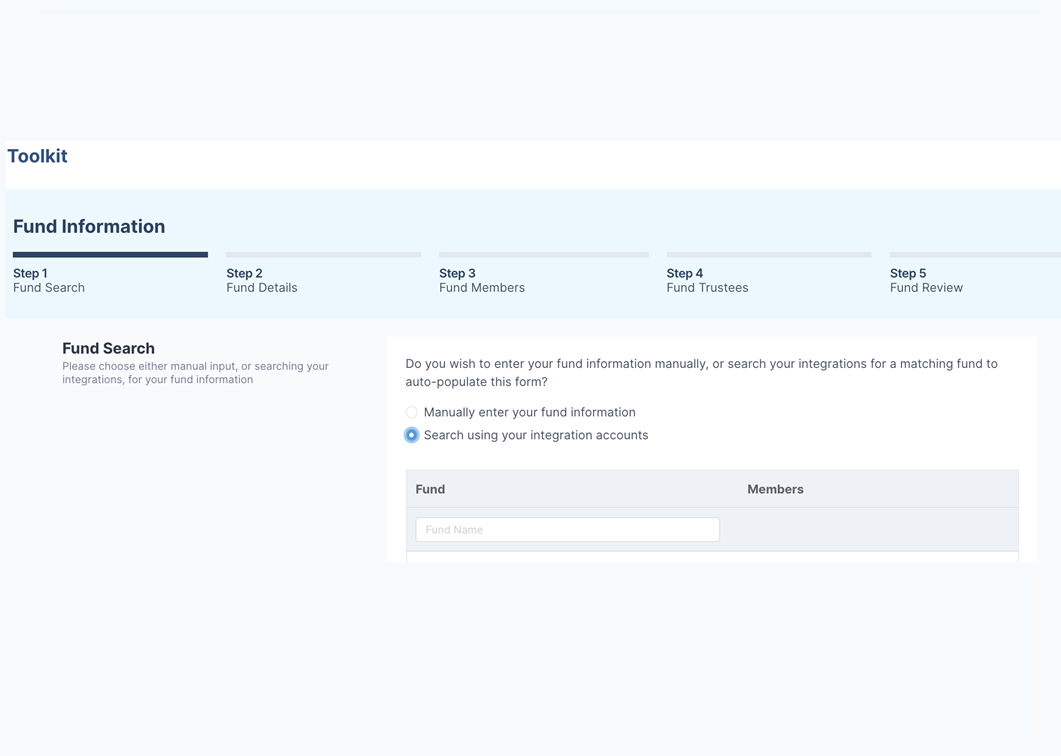
Start a new item in the Super Toolkit. The first data input screen will invite you to either manually enter fund information or search using your integration account. Choose the "search" option. All the funds you can access will appear in the list.
Select the fund you want by scrolling or typing the first few letters of the name.
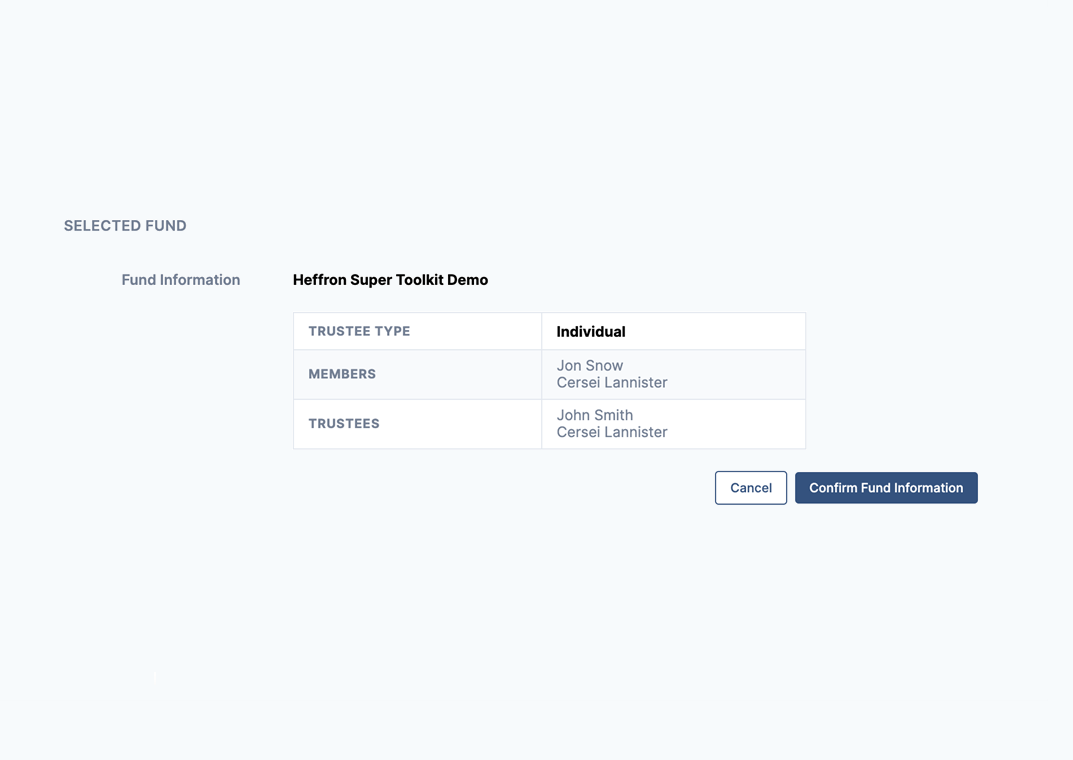
This will populate the form you are working on with the fund and member details from your integrated account and then invite you to review it.
Click "Confirm Fund Information".
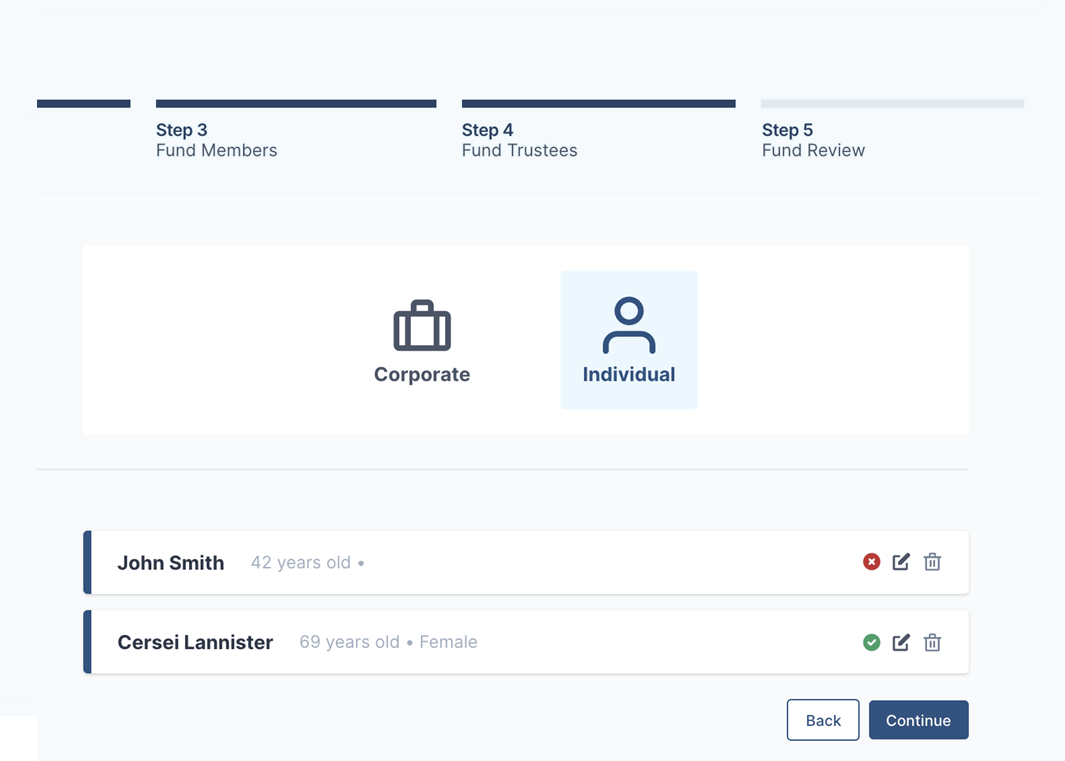
Step through the Toolkit form to review the information. Sometimes we require additional data to complete your request. If that's the case, you'll see red crosses indicating information is not complete.
Click the edit button to add this information or edit any other information in the form. A green tick will appear when all required information is complete.
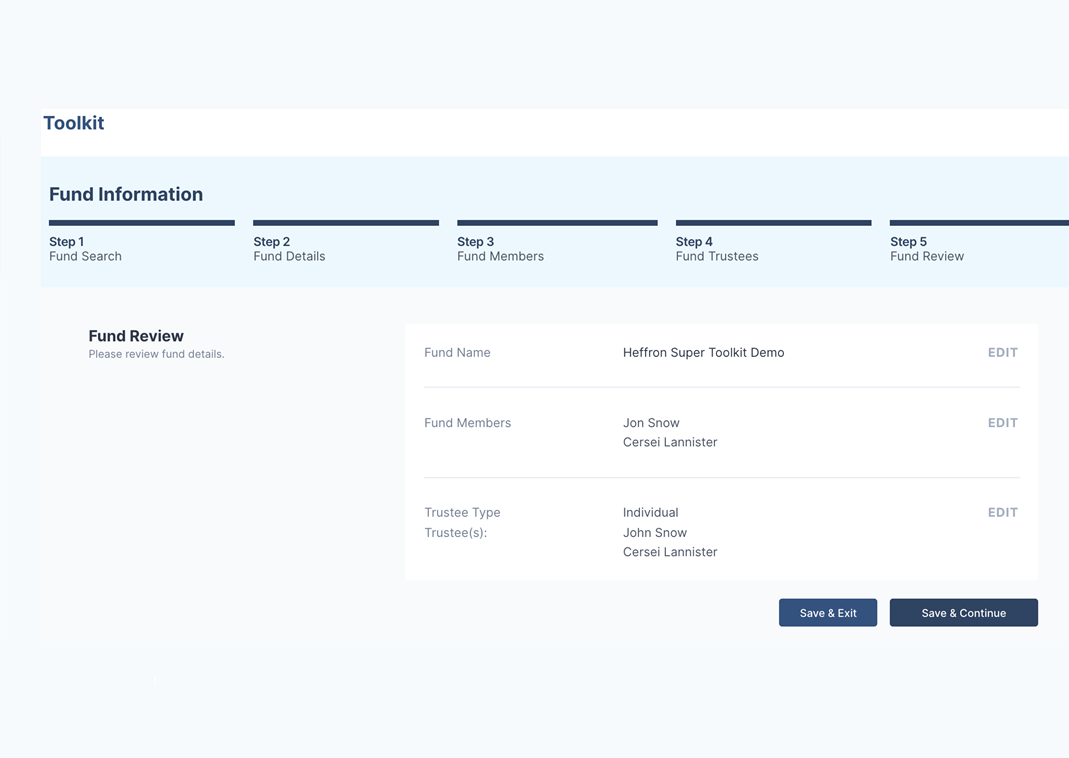
The Fund Review screen will show you the summary of fund information and any edits you have made. Please note, any changes or additions you make in the Super Toolkit will not be updated anywhere else.